Talk to Claude desktop hands-free
Pace the room, think out loud, and start each thought with “Claude,”. It lands in the Claude app’s message box and sends, and Claude starts answering before you sit down.
Before you start#
- Macrophone on your iPhone and Mac, paired. (Download for Mac)
- The Claude desktop app installed and signed in.
Set it up#
- In Macrophone for Mac, open Profiles. A Claude profile is already there if Claude was installed when you set up Macrophone; otherwise choose Add a Target… and add Claude.
- That's it. It pastes into Claude's message box and sends with Return, after a 2.5-second countdown. Claude is on the Return list from the start.
- The first time, macOS asks for Accessibility permission so Macrophone can paste and find the message box. Allow it.
Talk#
On your iPhone, tap the mic and start with the prefix and a pause:
Claude, compare these two job offers on salary, growth and commute, and tell me which questions I should still ask.
Sent to Claude, without “Claude,”.Or, if you'll be talking to Claude for a while, pick Claude in Send to by the mic and skip the prefix.
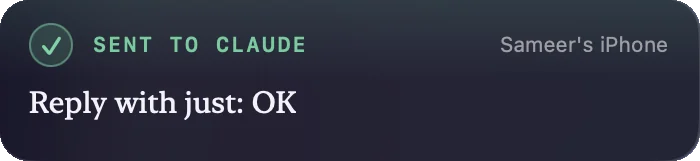
On your Mac, Macrophone brings Claude forward, puts the cursor in the message box (even if you'd clicked somewhere else), pastes, checks it arrived, presses Return, and puts your clipboard back. The panel reads Sent to Claude.
Make it yours#
- A specific chat. Open the conversation you want in its own window and put words from its title in the profile's Only the window with this in its title.
- Back to where you were. Turn on Go back to where I was after sending to return to the app you were using once the message is in.
- Review before sending. Turn off Send it — press the send key after pasting. The words land in the box and wait for you.
- Context from your screen. A template like
About {{url}}: {{text}}or{{selection}}brings in what you're looking at. See templates. - A button for it. A Dictate to Mac control set to Claude on the Action Button, or “Dictate to Claude with Macrophone” to Siri. See Shortcuts.
- ChatGPT, too. The ready-made ChatGPT target works the same way: “ChatGPT, …”.
The Claude app sends your message to Anthropic, exactly as if you'd typed it. Macrophone only types it in. If you'd rather get an answer without a chat window at all, see Ask Claude, which uses your own API key.
If it doesn’t send#
- “Didn't send — Claude's message box wasn't focused”: make sure a Claude window is open (not just the app running in the menu bar), then Try Again. The text is on your clipboard.
- “Pressed Return, but it's still in the message box”: Claude was still answering your last message. Press Return when it's done.
- Nothing happens at all: check Accessibility in System Settings › Privacy & Security › Accessibility.