Voice prefixes and Send to
Three ways to say where a dictation goes: say it, pick it, or let your Mac pick by the app you’re using.
Voice prefixes#
Start a dictation with a target's name and a pause, and that one dictation goes there:
Claude, fix the failing test and run the suite again.
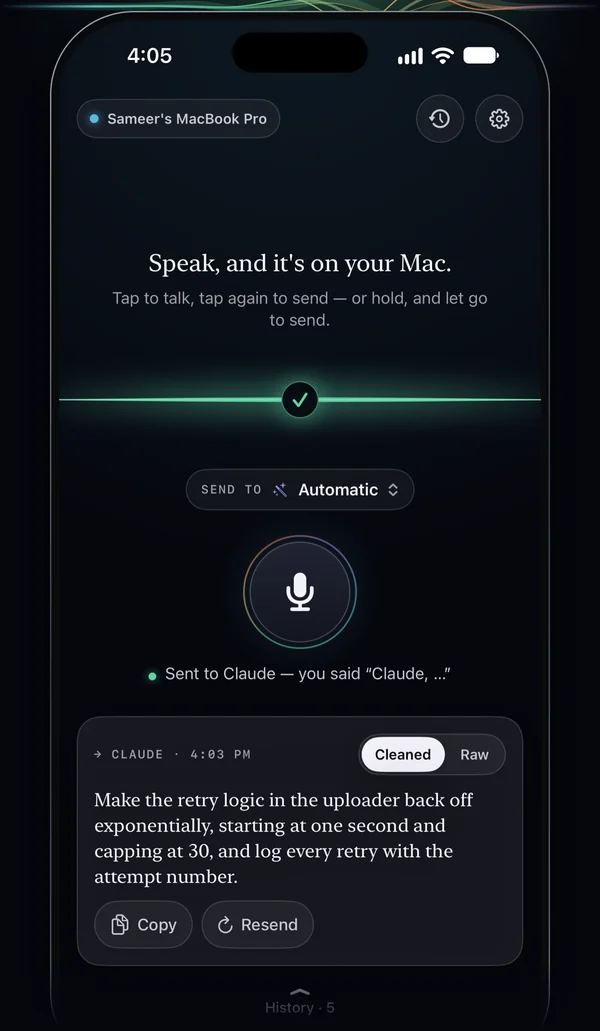
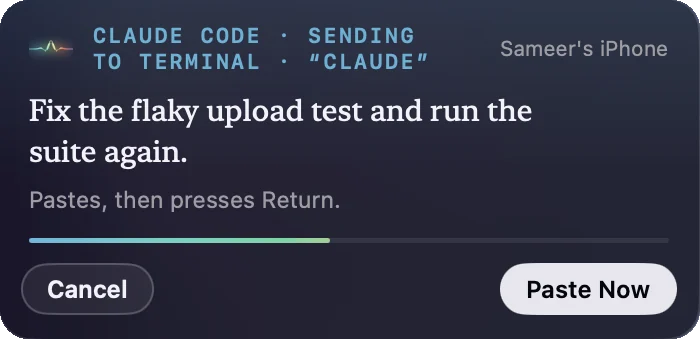
Goes to Claude. What arrives is “Fix the failing test and run the suite again.”- Your iPhone takes the words off before cleanup and sending. The raw transcript keeps exactly what you said.
- It needs the pause. The prefix must be followed by the punctuation the recognizer adds for a pause (a comma, colon, full stop, semicolon, exclamation mark or dash) or by the spoken words “colon” or “comma”. So “note that the API…” never matches a “note” prefix.
- The longest prefix wins: “Claude Code, …” goes to Claude Code (Terminal), not Claude.
- The target's cleanup level applies to that dictation.
- While you're still talking, the chip by the mic flips to SAID · Claude the moment the prefix is heard. Afterwards the phone says “Sent to Claude — you said “Claude, …””.
Set prefixes on the Mac, in the profile editor's Voice prefix field: type a word and press Return. A profile can have several. The ready-made targets come with “Claude”, “Claude Code”, “ChatGPT” and “Cursor”. Your Mac sends every profile's prefixes to the phone whenever profiles change or the phone connects, so they work offline too.
Send to on the iPhone#
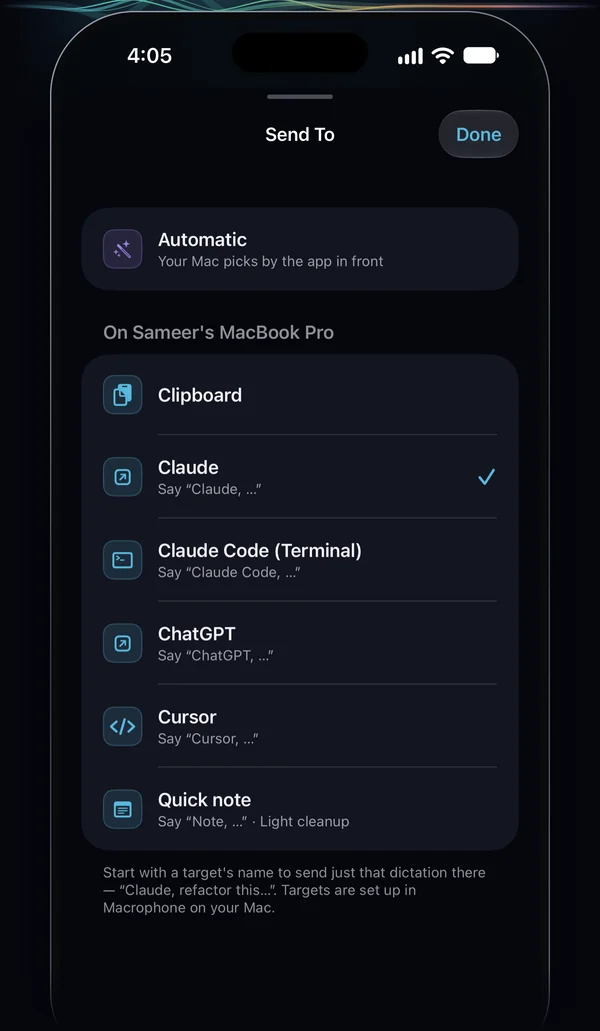
The Send to chip by the mic lists Automatic and every target on your Mac, with the words that pick each one by voice. Your choice sticks until you change it.
- Automatic (the default on a fresh install): your Mac picks by the app in front.
- A target: every dictation goes there.
The phone keeps the last list your Mac sent (names, cleanup levels and voice prefixes only), so the picker, voice prefixes, Shortcuts and controls work while the Mac is away. If the Mac removes the target you'd picked, the phone goes back to Automatic.
Shortcuts, Siri, the Action Button and Control Center controls can name a target (or Automatic) for one recording without changing your pick. See Shortcuts.
Automatic and per-app rules#
On Automatic, your Mac decides. In Profiles, under When an app is in front:
- Add Rule… picks an app, and a menu picks the profile: “When Cursor is in front, use Cursor”. The minus button removes a rule.
- Otherwise: your default profile.
The app that counts is the one in front when the dictation arrives. Rules only apply to dictations your iPhone sends on Automatic; a voice prefix or a target you picked always wins. A rule whose profile you deleted falls back to the default.
Permissions: none extra. macOS tells any app which app is in front. Pasting into it still needs Accessibility, as any paste does.
Which one wins#
| Order | What decides | Phone reports it as |
|---|---|---|
| 1 | A voice prefix you said (“Claude, …”) | prefix |
| 2 | A target named by the Shortcut, Siri phrase, Action Button or control that started the recording | chosen |
| 3 | The target picked in Send to | chosen |
| 4 | On Automatic: the rule for the app in front when it arrives | automatic |
| 5 | Your default profile | automatic |
A trigger set to Automatic counts as Automatic for that recording, even if a target is picked in the app. The profile that ran is in History, and in the API's profile field.