Profiles and automations
A profile is a named bundle of what happens to a dictation on your Mac: where it goes, whether it’s sent, how it’s shaped, and what else runs. Your iPhone calls them targets.
- How a dictation is handled
- Delivery modes
- The profile editor
- Where it goes
- Then
- Shape the text
- Also
- Scripts
- Webhooks
How a dictation is handled#
- Pick the profile. A voice prefix (“Claude, …”) wins, then a target picked on the iPhone or by a Shortcut, then (only when the iPhone sent it on Automatic) the rule for the app in front, then your default profile. Details.
- Snippets expand inside the text.
- The profile's Format shapes it.
- The profile's Template wraps it, with context variables filled in.
- It goes where the profile says (Where it goes), and everything under Also runs, plus the script and webhook.
Cleanup happens earlier, on the iPhone, before the text is sent. A profile's cleanup level is sent to the phone so it can apply it.
Delivery modes#
The Mac app has one global setting, in the Delivery pane, for how a dictation arrives when its profile doesn't say otherwise:
| Mode | What happens |
|---|---|
| Clipboard + notification (default) | The text is copied and a small panel under the menu bar icon shows a preview. |
| Clipboard only | Copied silently. Paste when you’re ready. |
| Auto-paste | Pasted into the app you’re using, then your previous clipboard is put back. Needs Accessibility permission, which macOS asks for when you turn this on. Without it, Macrophone falls back to clipboard and notification. |
The Delivery pane also holds the Return list: the apps Macrophone may press the send key in.
The profile editor#
Open the Mac app's window and go to Profiles. Add a Target… offers ready-made profiles for Claude, Claude Code (Terminal), ChatGPT and Cursor and the other tuned apps. Each profile has:
| Setting | What it does |
|---|---|
| Name | What you’ll see on the phone, such as “Claude”, “Claude Code (Terminal)” or “Quick note”. |
| Voice prefix | Words that pick this profile when you start a dictation with them: “Claude, …”. Voice prefixes. |
| Cleanup | Use the iPhone’s setting, or Off, Light, Medium or Heavy for this profile. |
| Where it goes | The clipboard, the app you’re using, a specific app, a tmux pane, or nowhere. |
| Then | Whether to send it, with which key, and whether to go back to where you were. |
| Shape the text | The format and the template. |
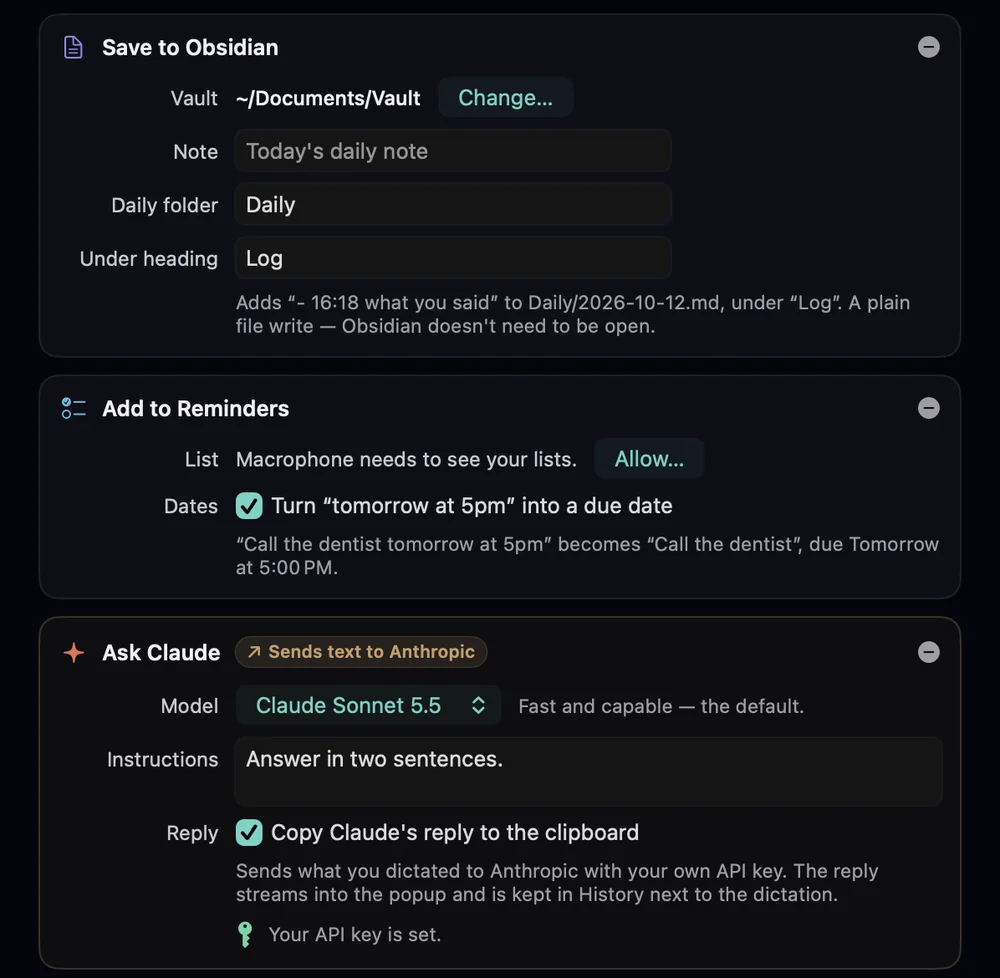
| Also | Save to Obsidian, Save to Apple Notes, Add to Reminders, Ask Claude. |
| Script and webhook | A shell command and a URL to run for every dictation. |
One profile is the default. Profiles sync to your iPhone whenever it's connected, where they show up in Send to by the mic. You can also bind one to a trigger, such as the Action Button. A profile that can send text off your Mac (Ask Claude, a script or a webhook) carries a Sends text off this Mac label in the list.
Under the list, When an app is in front holds your per-app rules.
Where it goes#
| Choice | What happens |
|---|---|
| As set in Delivery | Follows the global delivery mode above. |
| Paste into the app you’re using | Pasted into whatever app is in front when it arrives. |
| Send to an app | Brings a chosen app forward (and a chosen window or tab), finds the message box, pastes and, if you like, sends. App targeting. |
| Type into a tmux pane | Types into a pane, whatever app is in front. tmux panes. |
| Nowhere — only do what’s under “Also” | Nothing is pasted or copied; only the actions run. Good for a notes-only or reminders-only profile. |
Pasting into an app needs Accessibility permission. Macrophone never pastes into a password field or while Secure Keyboard Entry is on; you get an error in the panel instead, with the text on your clipboard.
Then#
For apps: Send it — press the send key after pasting, the Send key (Return or ⌘ Return) and Go back to where I was after sending. For tmux: Press Return after typing. Because these send things, they have guard rails:
- A countdown. Before the paste happens, the panel shows the text with a thin countdown line and Cancel for 2.5 seconds. Hover over it to pause; Paste Now or Send Now skips the wait.
- The Return list. The send key is only pressed in apps on the Return list (Delivery pane). Anywhere else, the text is pasted and left for you to send. The editor warns you and offers an Add button.
- No password fields. Secure text fields are never pasted into.
- Never for delayed dictations. Anything that waited in the phone's offline queue is only copied to the clipboard and labelled as delayed.
More in the safety rules.
Shape the text#
Format turns the text into one line, a code block, a Markdown quote, a shell-quoted argument or a JSON string (formats). Template wraps it, with variables like {{selection}} and {{url}} filled in when it arrives (templates). Both have a live preview in the editor.
You are a careful code reviewer. Review the change I describe, and list risks first.

{{text}}
The result goes to the app or pane, the actions, the script and the webhook's text field. The API, the command line and MCP always return your words without the snippets, format or template.
Also#
Add Action adds any of these. Several can run on one dictation.
| Action | What it does |
|---|---|
| Save to Obsidian | Adds a timestamped line to today’s daily note, or a note you name, optionally under a heading. |
| Save to Apple Notes | Makes a new note, or adds to one note. |
| Add to Reminders | Adds a reminder, turning “tomorrow at 5pm” into a due date. |
| Ask Claude | Sends the text to Claude with your own API key and shows the reply. Labelled Sends text to Anthropic. |
See Obsidian, Notes, Reminders and Ask Claude.
Scripts#
A profile can run a shell command for every dictation. Macrophone runs it as:
/bin/zsh -lc "<your command>"The final text (snippets, format and template applied) arrives on standard input, and these environment variables are set:
| Variable | Value |
|---|---|
MACROPHONE_TEXT | The final text |
MACROPHONE_RAW | The raw transcript |
MACROPHONE_PROFILE | The profile’s name |
MACROPHONE_ID | The dictation’s id |
A script has 30 seconds to finish. If it exits with a non-zero status, the panel shows an error with the first line of what it printed to standard error.
# Append to a plain notes file
cat >> ~/Notes/inbox.md

# Pass it to your own script
~/bin/handle-dictation.sh
For Obsidian, Apple Notes and Reminders there are built-in actions now; no script needed.
Scripts can reach the network. A script that sends text to a server takes it off your devices. The Mac app labels every profile with a script or webhook as one that can send text elsewhere.
Webhooks#
A profile with a webhook URL sends a POST for every dictation, with this JSON body:
{
  "id": "6F1C2A7E-3B4D-4C55-9A0E-2D8F1B7C9E10",
  "text": "Refactor the upload handler so retries back off exponentially.",
  "raw": "so um refactor the upload handler so that it no so retries back off exponentially",
  "cleaned": "Refactor the upload handler so retries back off exponentially.",
  "profile": "Claude",
  "created_at": "2026-10-12T20:41:03Z",
  "language": "en-US",
  "source_device": "Alex's iPhone",
  "delayed": false
}textis the final text: snippets, format and template applied.rawandcleanedaren't.- Headers:
Content-Type: application/jsonandUser-Agent: Macrophone/<version>. - Timeout is 10 seconds, with one retry after 3 seconds.
- Use the
idto ignore duplicates if your receiver isn't idempotent.
There's a step-by-step guide for Zapier, n8n, Make and Home Assistant in the webhook recipe.