App targeting
Dictate straight into an app and have it sent: a Claude chat, the Terminal tab running Claude Code, ChatGPT, Cursor’s agent. You talk; Macrophone finds the box, types it in, and presses send.
- What it does
- Set it up
- The target catalog
- Pick a window or tab
- Send key
- Go back to where I was
- Safety rules
- What the popup says
- Permissions
What it does#
When a dictation arrives for a profile set to Send to an app, Macrophone for Mac:
- brings the app forward, launching it if needed, and when the profile names a window or tab, that window or tab first;
- puts the cursor in the message box (chat apps), even if you’d clicked somewhere else;
- pastes, then checks the words actually showed up in the box;
- presses the send key, if the profile sends and the app is on the Return list, then checks the box emptied;
- puts your clipboard back and, if you asked, brings back the app you were using.
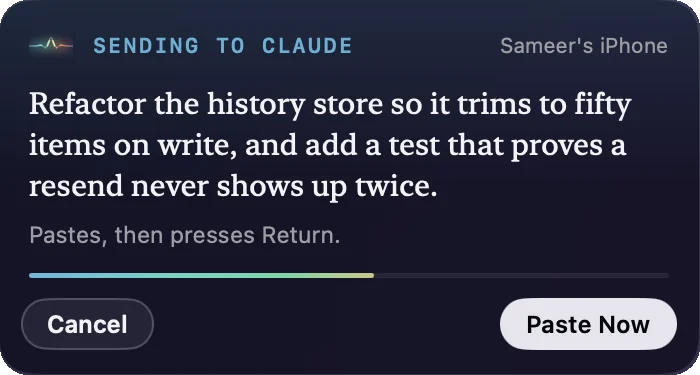
All of that happens after a 2.5-second countdown you can cancel.
Set it up#
The quickest way: in the Mac app's window, open Profiles and choose Add a Target…, which offers ready-made profiles. They're also added on first run for the apps you have installed:
| Profile | Goes to | Sends | Voice prefix |
|---|---|---|---|
| Claude | The Claude desktop app | Yes | “Claude” |
| Claude Code (Terminal) | Terminal: the tab running claude | Yes | “Claude Code” |
| ChatGPT | The ChatGPT desktop app | Yes | “ChatGPT” |
| Cursor | Cursor | Yes | “Cursor” |
To build your own, edit any profile and under Where it goes choose Send to an app, then pick an app with Change… (apps from the catalog below show Tuned); Any app… works too and pastes where the cursor is.
Then send to it from your iPhone: say its voice prefix (“Claude, …”), pick it in Send to by the mic, or bind it to the Action Button.
Upgrading? An untouched “Claude prompt” profile from an earlier version becomes Claude (same profile, so an iPhone that had it picked keeps it), and the other ready-made targets are added once if their apps are installed.
The target catalog#
These apps have tuned behaviour. Any other app works too.
| Target | Sends by default | What “tuned” means |
|---|---|---|
| Claude | Yes | Finds the message box (“Write your prompt to Claude” / “Ask Claude anything”), focuses it, checks the paste and the send |
| ChatGPT | Yes | The same, for ChatGPT’s message box |
| Codex | Yes | The same, for the task box |
| Cursor | Yes | The same, for the Agent box |
| VS Code | No | Pastes where the cursor is: the editor or the chat box |
| Terminal | Yes | Picks the tab by its title or by the program running in it |
| iTerm2 | Yes | Picks the session by its name |
| Ghostty | Yes | Window titles |
| Warp | Yes | Window titles |
| Slack | No: it reaches people | Finds the message box. The editor warns you if you turn sending on |
Every target uses Return as its send key by default. Apps that send by default are on the Return list (Delivery pane) out of the box, so they work without setup.
Bundle identifiers
| Target | Bundle id |
|---|---|
| Claude | com.anthropic.claudefordesktop |
| ChatGPT | com.openai.chat |
| Codex | com.openai.codex |
| Cursor | com.todesktop.230313mzl4w4u92 |
| VS Code | com.microsoft.VSCode |
| Terminal | com.apple.Terminal |
| iTerm2 | com.googlecode.iterm2 |
| Ghostty | com.mitchellh.ghostty |
| Warp | dev.warp.Warp-Stable |
| Slack | com.tinyspeck.slackmacgap |
Pick a window or tab#
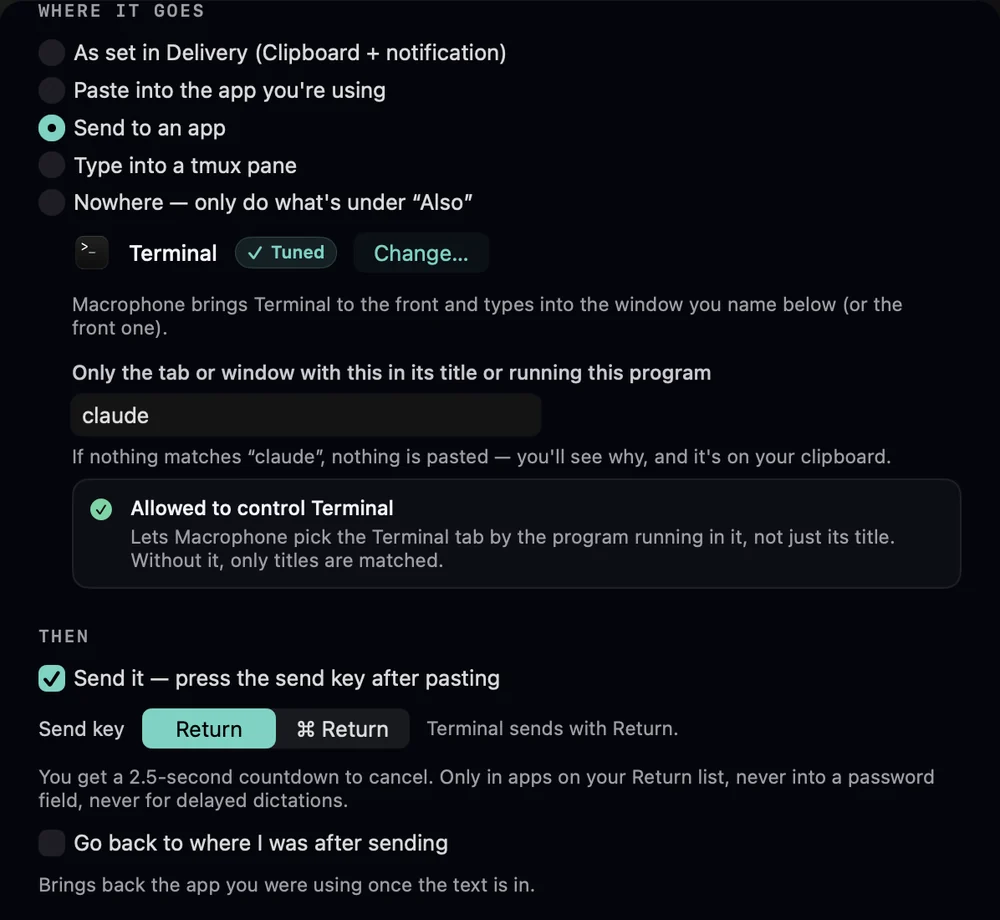
A target can name the window or tab to use. Chat apps and editors have Only the window with this in its title; terminals have Only the tab or window with this in its title or running this program. Empty means the front window. Matching ignores case and looks for the words anywhere in the title.
- Terminal: with permission to control Terminal, every tab is checked: its custom title, the window name, and the programs running in it. So
claudefinds the tab running Claude Code even when another tab is selected. Without that permission, window and tab titles are matched through Accessibility; Claude Code puts “Claude” in its title, so it usually still works. - iTerm2: session names, with permission to control iTerm2; titles otherwise.
- Other apps: window titles and native tab titles.
Windows on another desktop (Space) can't be seen. If nothing matches, nothing is pasted. The panel says, for example, “No Terminal tab matching “claude””, the text is on your clipboard, and Try Again runs it again once you've opened the tab.
claude, sent with Return.Send key#
Send it — press the send key after pasting turns sending on or off; its default comes from the catalog. Send key is Return or ⌘ Return. Every target uses Return today; switch it for an app you've set to send with ⌘ Return. If the app isn't on the Return list, the editor says so and offers an Add button.
Go back to where I was#
Go back to where I was after sending (off by default) brings back the app you were using once the text is in. Useful when you're reading in one app and prompting another.
Safety rules#
Sending into apps is powerful, so these always hold:
- 2.5 seconds to cancel. Before anything is pasted or sent, the panel shows the text with a countdown and Cancel. Hovering over the panel pauses it. Send Now or Paste Now skips it.
- An allowlist for the send key. The send key is only pressed in apps on the Return list (Delivery pane). Anywhere else the text is pasted and left for you.
- Never into secure fields. Nothing is pasted into a password field, or while Secure Keyboard Entry is on.
- Delayed dictations never send. A dictation your iPhone queued while the Mac was away arrives marked delayed and is only copied: never pasted, typed or sent on its own, hours later, into whatever happens to be open.
- It checks. If the words didn't reach the message box, it doesn't press send. If the box didn't empty after sending, it tells you.
- Your clipboard comes back after every paste.
Actions under Also, scripts and webhooks still run for delayed dictations; the webhook body says "delayed": true.
What the popup says#
| What happened | The panel |
|---|---|
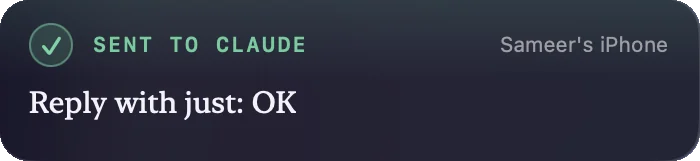
| Pasted, sent, box emptied | Sent to Claude |
| Sent to a terminal or tmux (which can’t be read back) | Sent to Terminal |
| Pasted, not set to send | Pasted into Claude |
| Pasted, app not on the Return list | Pasted into Notes · “Return skipped — Notes isn’t on your Return list” |
| Pressed send, words still in the box | Pasted into Claude · “Pressed Return, but it’s still in the message box — Claude may still be answering. Press Return when it’s ready.” |
| The words never reached the message box | Not sent · “Didn’t send — Claude’s message box wasn’t focused” · on the clipboard · Try Again |
| No matching window or tab | Not pasted · “No Terminal tab matching “claude”” · Try Again |
| A password field is active | Not pasted · “Not pasted — a password field is active” |
| Accessibility is off | Copied, not pasted · Open System Settings |
While counting down, the panel reads “Sending to Claude” (or “Pasting into …”), plus the window match: “· “claude””. A dictation picked by voice prefix shows the profile first: “Claude Code · Sending to Terminal · “claude””.
Permissions#
| Permission | Needed for | Asked |
|---|---|---|
| Accessibility | Pasting, finding the message box, reading window titles, pressing the send key | When you first set a profile to paste |
| Automation: Terminal | Matching a Terminal tab by the program running in it | Only from the editor’s Allow… button, never by surprise |
| Automation: iTerm2 | Matching iTerm2 sessions by name | The same |
The Automation prompt explains itself: “Lets Macrophone pick the Terminal tab by the program running in it, not just its title. Without it, only titles are matched.” If you say no, the row explains how to turn it on in System Settings › Privacy & Security › Automation, and titles still work.
When you send to a chat app like Claude or ChatGPT, that app sends your words to its service, exactly as if you'd typed them.