
Using your Mac from your iPhone
Your iPhone shows any window on your Mac, or its whole screen, live, and everything you do there happens on your Mac. It starts on the part you type in, at a size you can read.
- Opening a window
- What you can see
- Three ways to drive it
- Touching the window
- A question’s answers are buttons
- Keys
- Mac Controls
- Sound
- The Window menu
- Stopping
Opening a window#
The app you pick in Send to wears an eye; tap it again and its window opens on your phone. A window also opens by itself after a dictation lands (Settings › Show the app after sending), from the Watch on Mac widget, or when you tap an alert that an agent is asking you something.
It comes as video, up to 60 frames a second at home, sent only while something changes, so a still window costs nothing. The first time, macOS asks for Screen Recording on the Mac.
What you can see#
- Any window, and what's over it. Menus, pop-ups, sheets, Open and Save panels and system panels show on top of the window, and take your taps.
- Every window on the Mac, dialogs too. The name at the top is a menu of them; or swipe in from the left or right edge of the screen for the next one. Send to follows the window on screen.
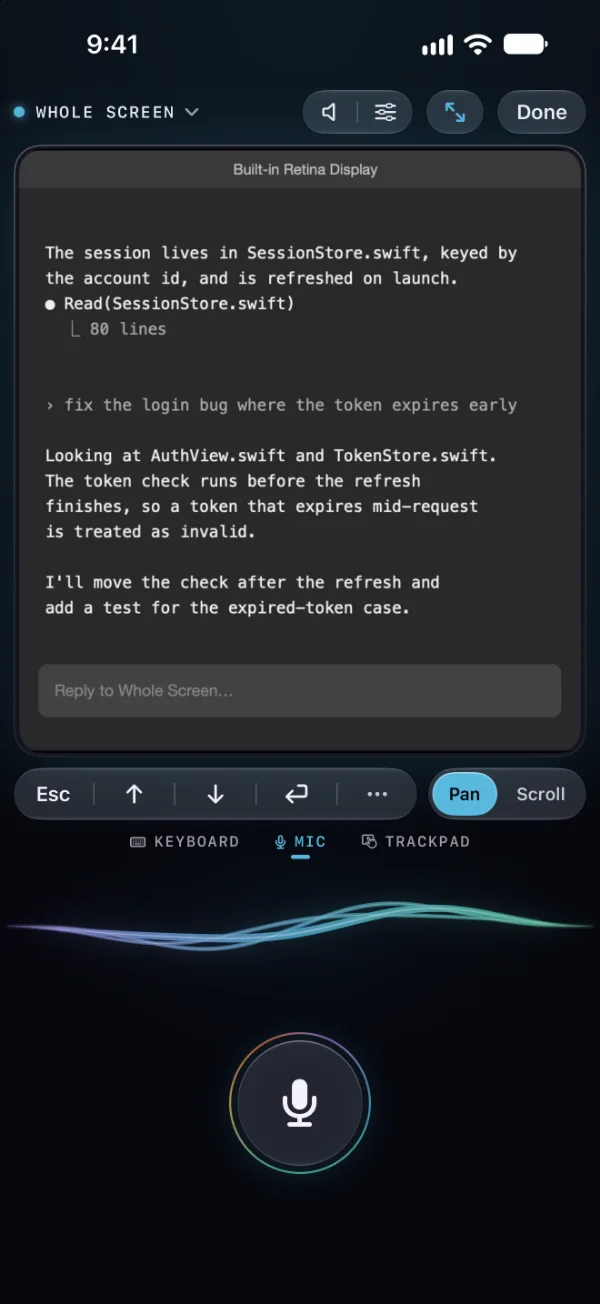
- The whole screen. The display button in Send to, or Whole Screen in the menu at the top. With more than one display, pick which.
Pinch to zoom. The zoom-out button beside Window shows the whole window, and Newest brings you back to the latest lines.
Three ways to drive it#
Under the window sit Keyboard · Mic · Trackpad. The mic is where you start, every time; swipe the Thread (the line above the mic) for the other two, or tap their names.
| Mic | Say the next thing. It lands in the window you’re looking at. |
|---|---|
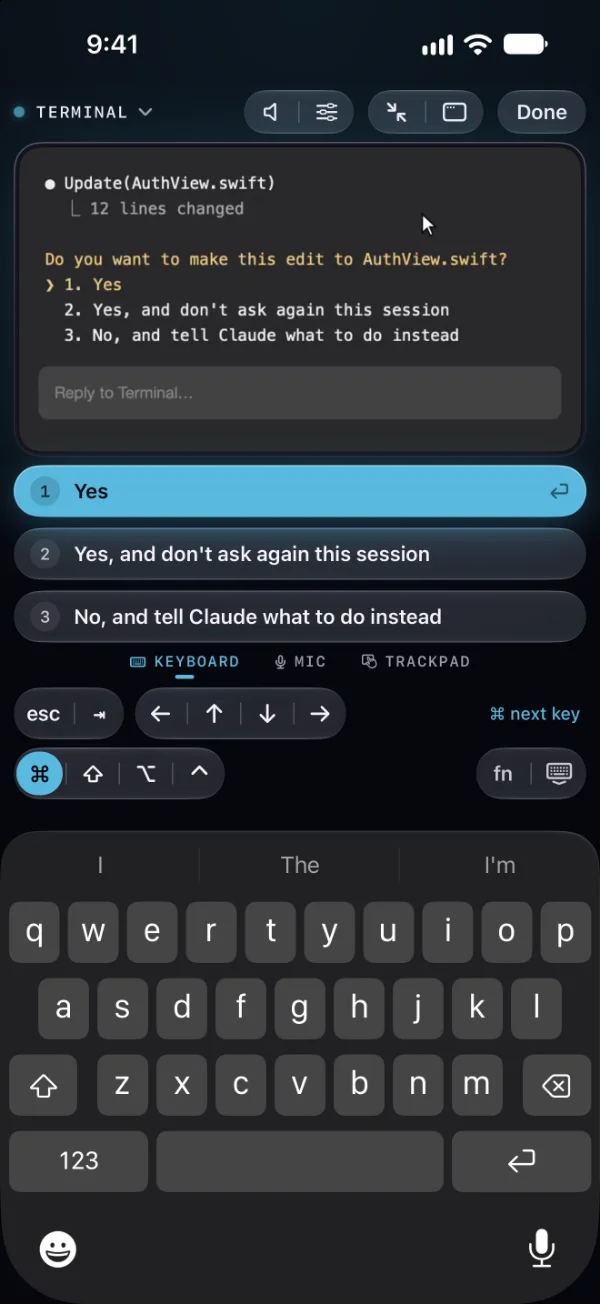
| Keyboard | The iPhone keyboard, typing straight into the Mac, autocorrect and all. Above it: esc ⇥, the arrows, and ⌘ ⌥ ⌃ ⇧, which hold for the next key or click. fn has F1–F20, Home, End, Page Up and Down, and your Mac’s own moves. |
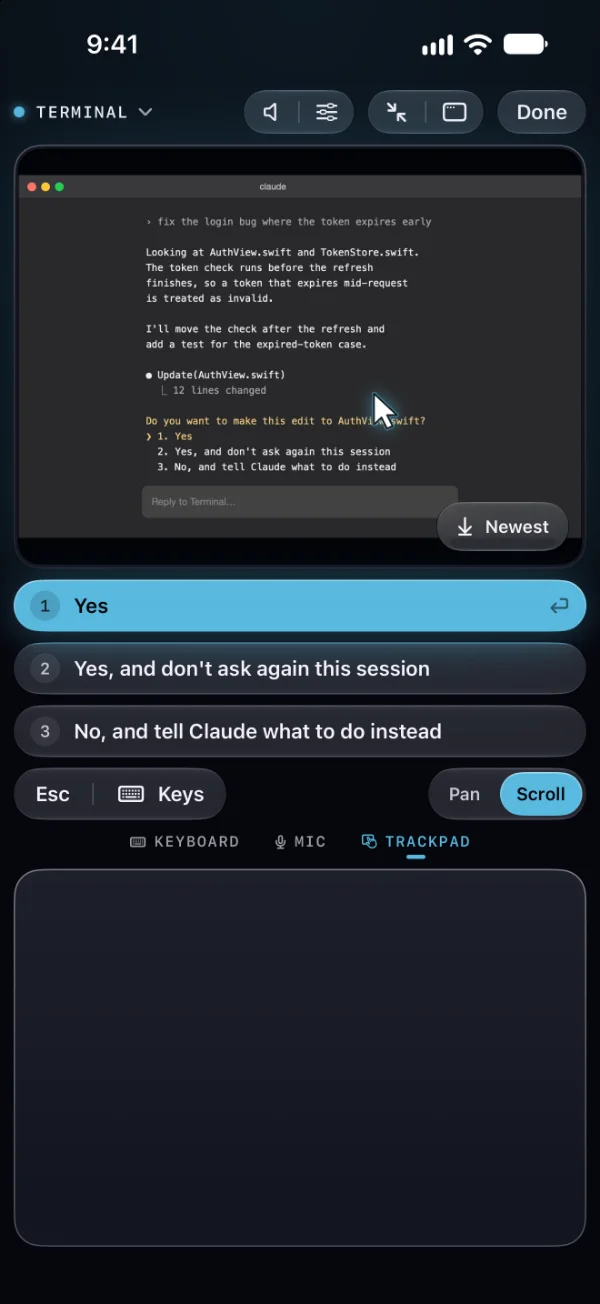
| Trackpad | A pointer you can see, over the window. One finger moves it; tap to click, tap twice to double-click, tap then hold and move to drag, tap with two fingers to right-click, move two fingers to scroll. Leave it over something to hover. |
Touching the window#
On the mic page, the window itself takes your finger. A tap is a click there; tap twice to double-click; tap, then hold and move, to drag; hold, or tap with two fingers, to right-click. Pan | Scroll beside the keys says what one finger does: move your view, or scroll the Mac's window right where your finger is, with a flick that keeps going, like a trackpad.
A question’s answers are buttons#
When the window shows a question, a numbered menu or a (y/n), its answers appear on your phone as buttons. Tap one and your Mac picks it, only if that question is still up. In the Claude app, question cards and Allow and Deny rows are read exactly; in a terminal, off the window. When an agent needs you.
Keys#
Under the window: Esc, ↑, ↓ and Return, the keys an agent's menu needs. ··· opens the rest, named by what they do: Interrupt ⌃C, Switch Mode ⇧⇥, Send ⌘↩, Undo, the arrows, Page Up and Down. Its last section is Your Mac, the same as the keyboard's fn menu:
| Switch App | ⌘Tab. Tap again to step to the next app. |
|---|---|
| Spotlight | ⌘Space |
| Mission Control | ⌃↑ |
| Show Desktop | F11 |
| Desktop Left · Right | ⌃← ⌃→ |
| Next Window | ⌘` |
Mac Controls#
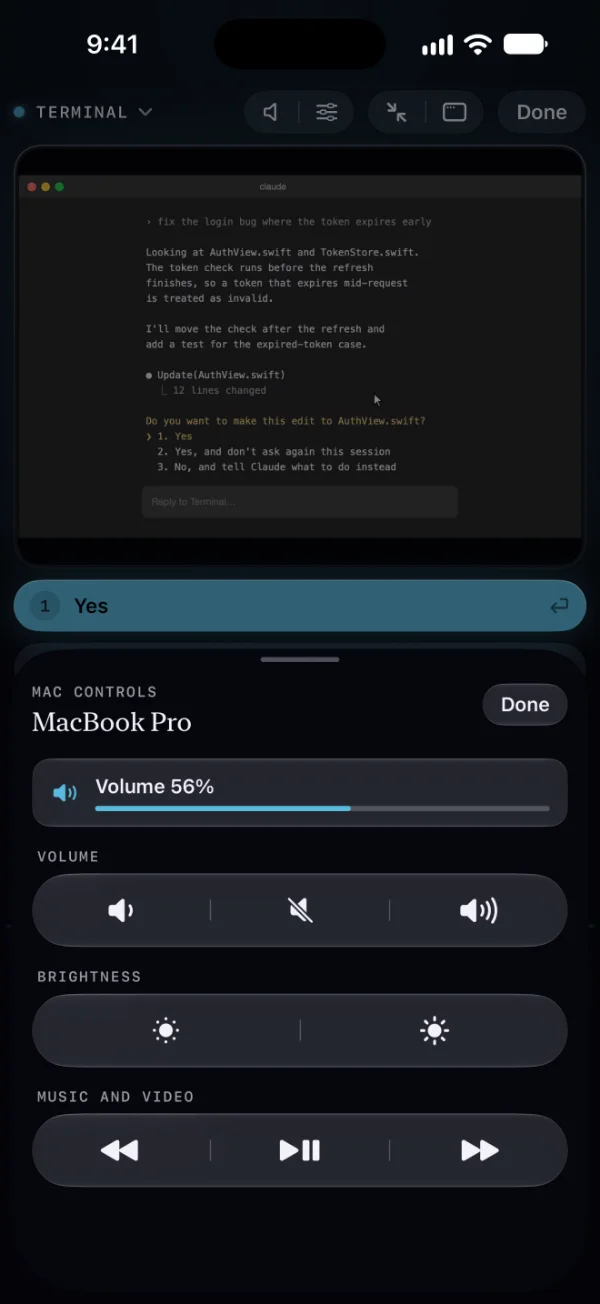
One button, beside Sound above the window (and in Send to): the Mac's volume down, mute and up, brightness down and up, and previous, play/pause and next. The panel stays open while you press, and reads back what the Mac did: “Volume 56%”.
Sound#
Tap Sound above the window and you hear your Mac on your iPhone: everything it plays, a moment behind. It's off until you turn it on, it pauses while the mic is open, and it never stops your own music or podcast.
The Window menu#
The window button beside the zoom-out button. Sizes are picked from a list, since dragging a window's edge on a phone is fiddly:
| Fit to iPhone | The window takes your phone’s shape, so all of it fills the view. An app you open from the phone opens this way. |
|---|---|
| Text size on this iPhone | Normal · Larger · Largest: your Mac narrows the window so its words read bigger. Remembered for each app; the window goes back to its own size when you stop. |
| Size on your Mac | Fill the Screen · Left Half · Right Half · Middle of the Screen · Back to How It Was. |
| Minimize · Close Window | Close asks first, and your Mac asks about unsaved work as usual. A window that closes, here or on the Mac, takes you back to Send to. |
| Photos, files, the clipboard | The same as Send to’s ⋯. Photos, files and the clipboard. |
| Show Tips Again | The first-use tips, one card at a time. |
Stopping#
Tap Done. Watching also pauses when you leave the app, and after two minutes without a touch; it comes back when you return. On the Mac, the menu bar icon becomes a ring while an iPhone is watching, and Stop Showing ends it from there. While you watch, the Mac's display stays on. A locked Mac says so on the phone, and nothing is clicked or typed into its lock screen. Nothing is recorded or saved on either side. What travels, in the privacy policy.